Reading Emails
Emails are rendered as styled Markdown in the terminal using glamour. The reader supports vim-style navigation.
Navigation
| Key | Action |
|---|---|
j / k | scroll line by line |
space / d | page down / up |
gg | jump to top of email |
G | jump to bottom of email |
h / q / esc | back to inbox |
Opening Emails Externally
| Key | Action |
|---|---|
e | open in $EDITOR (read-only) — search, copy, vim motions |
o | open in w3m (terminal browser, clickable links) |
O | open in $BROWSER (GUI browser, images rendered) |
ctrl+o | open newsletter web version in $BROWSER (from List-Post header) |
Images
Remote images appear as [Image: alt] placeholders, keeping the reading experience clean and fast. To see images, press O to open in your browser.
Inline / attached images (e.g. screenshots pasted into an email) are listed in the reader header: Attach: [1] screenshot.png [2] report.pdf. Press 1–9 to download to ~/Downloads/ and open with xdg-open. Inline images also show [Image: filename.png] placeholders at their position in the body text.
When you press O to open in the browser, inline images are extracted from the email and saved to temp files. The HTML cid: references are rewritten to file:// paths so the browser renders them — including images sent by other people (not just your own).
Spy Pixel Blocking
neomd automatically detects and blocks tracking pixels, similar to HEY’s spy pixel blocker. Since the TUI renders emails as styled Markdown via glamour, remote images are never fetched — senders cannot tell if you read their email.
Two-layer detection (same approach as HEY):
- Curated denylist — 150+ tracking services with URL pattern matching, sourced from Simplify (BSD-3-Clause), LeaveMeAlone (CC-BY 3.0), and DHH’s original HEY list (MIT). Covers Mailchimp, HubSpot, SendGrid, ConvertKit, Substack, Amazon, Facebook, LinkedIn, and many more. When matched, the service name is shown (e.g. “Mailchimp”).
- Generic 1×1 pixel heuristic — catches custom/branded tracking domains not on the list by detecting
<img>tags with emptyaltAND tiny dimensions (both width/height 0–1) or CSS hiding (display:none). Layout spacers (e.g. 1×50) are not flagged.
When tracking pixels are detected, neomd shows:
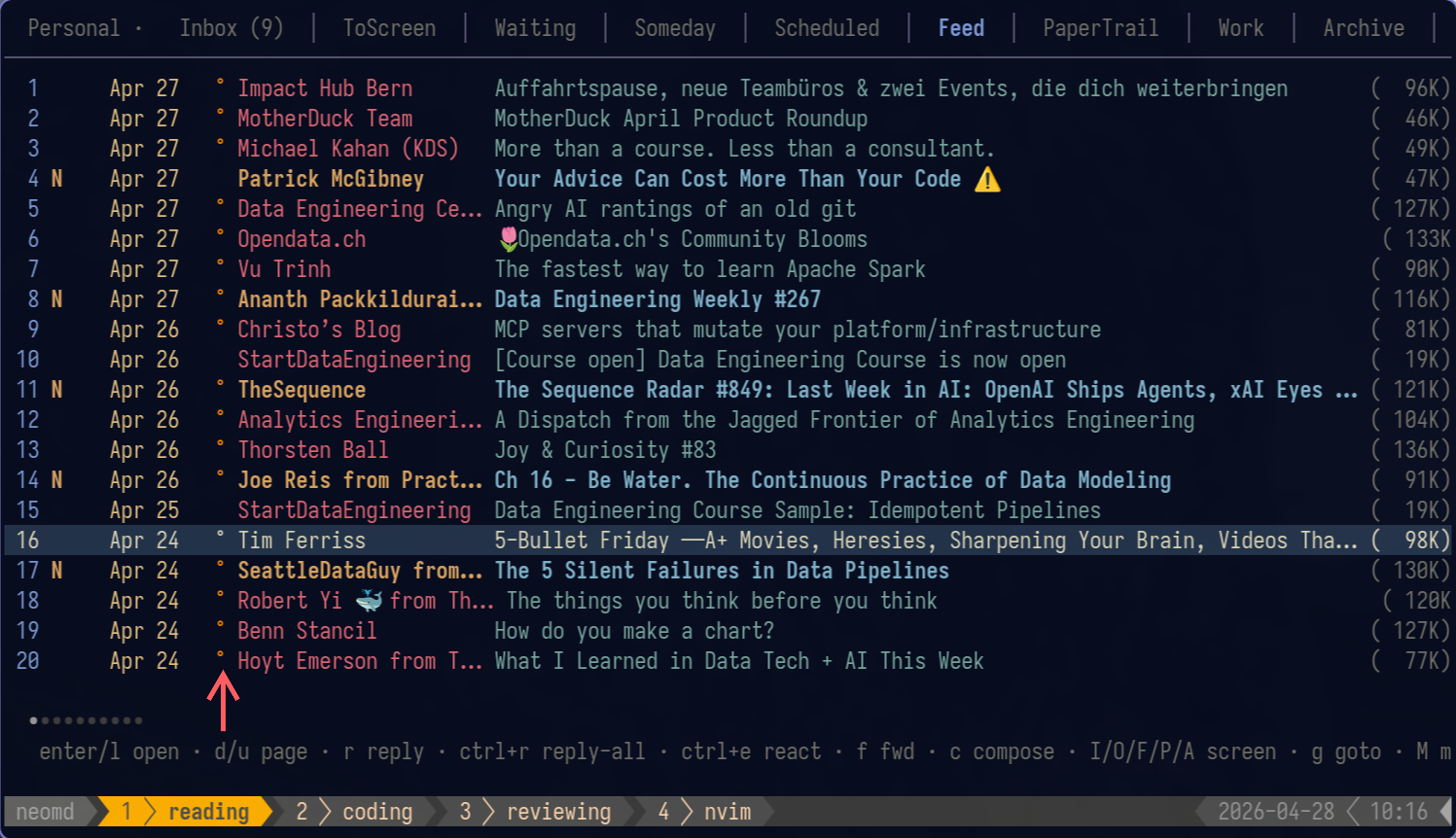
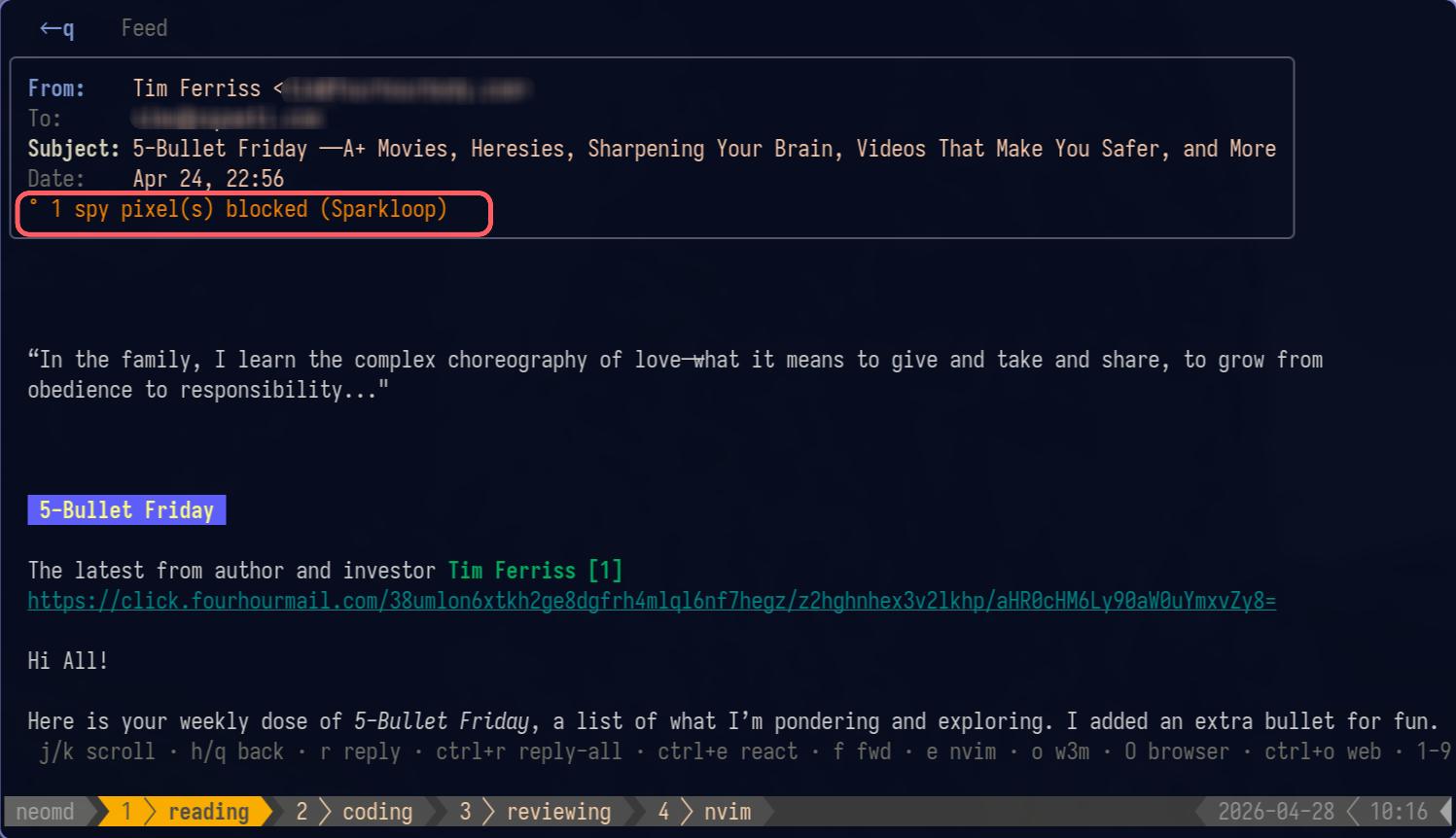
°indicator in the inbox list (orange, next to the attachment@column)° N spy pixel(s) blocked (ServiceName)in the reader header with tracker attribution
Scanning: Spy pixels are detected when you read an email. To scan all emails in the current folder at once, press <space>S or run :scan-spy-pixels (alias :ssp). The scan runs in the background, skips already-scanned emails, and uses IMAP PEEK (won’t mark emails as read). Results are cached in ~/.cache/neomd/spy_pixels and persist across restarts.
When you press O to open in the browser, remote images load normally — you’re explicitly choosing to see the full email. Tracking pixel blocking is a TUI-level protection.
This is how it looks:
In overview:
And within an email open:
Links
Links in emails are automatically numbered inline where they appear in the body. A link like Check out our blog renders as Check out our blog [1] in the terminal.
Press space then a digit (1–9, 0 for 10th) to open the link in $BROWSER.
- Up to 10 links per email, deduplicated by URL
- Numbers appear inline so you can see them while reading without scrolling
- If an email has no links,
spaceworks as page-down as usual
Attachments
Attachments are listed in the reader header:
Attach: [1] report.pdf [2] photo.pngPress 1–9 to download attachment N to ~/Downloads/ and open it with xdg-open. Filenames are deduplicated automatically if a file already exists.
Download Raw Email Source
Press space then d in the reader to download the full raw email source (.eml file) to ~/Downloads/. The file is named neomd-YYYYMMDD-<subject>.eml using the email’s date and sanitized subject line.
This is useful for archiving emails, debugging headers, or importing into other email clients. The status bar shows a green confirmation when the download completes.
Calendar Invites (iCalendar / RSVP)
When an email has a text/calendar part or .ics attachment, the reader shows a card and exposes a chord:
📅 Q2 Planning · Mon, 21 Apr 2026 14:00–15:00 · Conference Room AWhen opening the email:
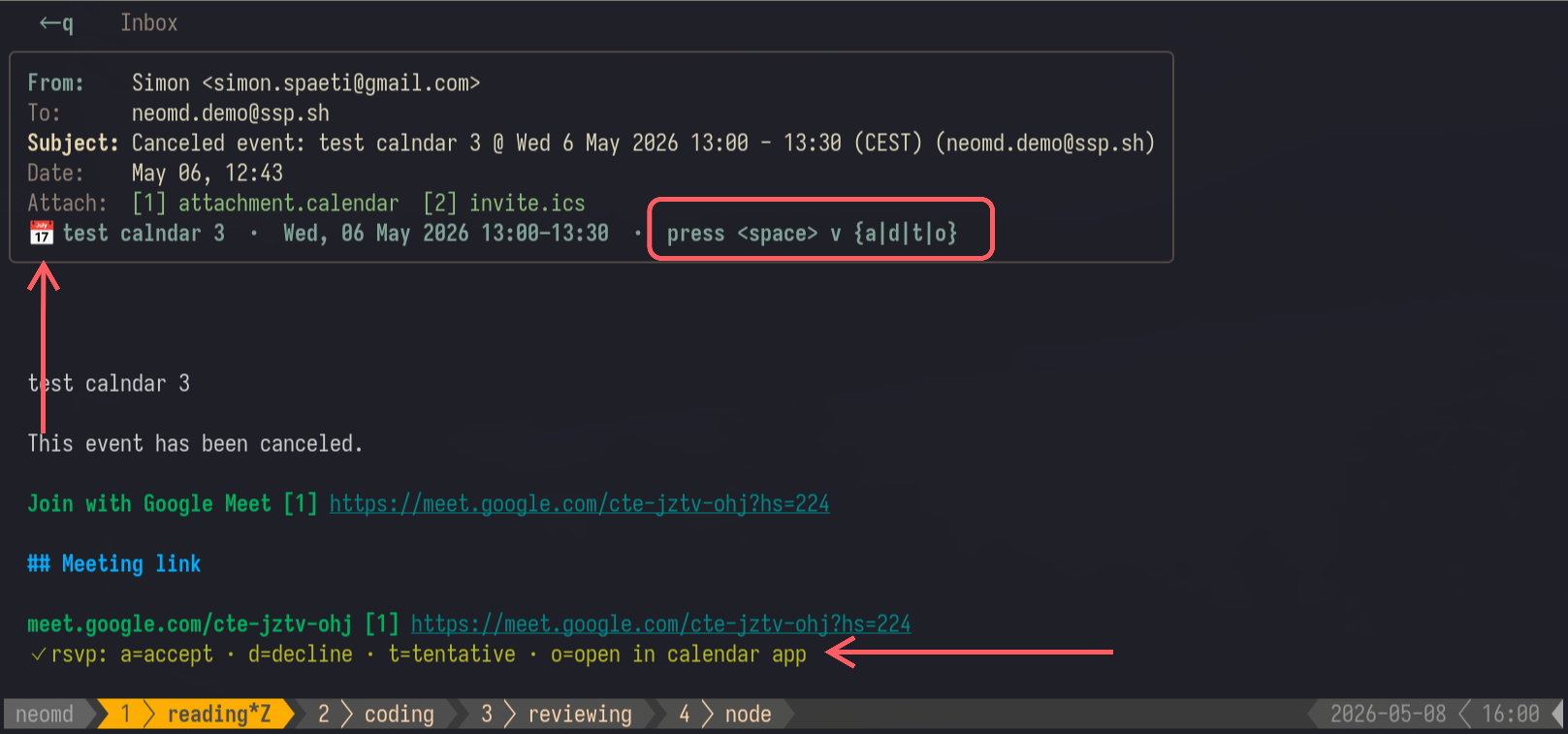
| Key | Action |
|---|---|
<space> v a / d / t | RSVP accept / decline / tentative — send iMIP REPLY to the organizer |
<space> v o | hand .ics to your local calendar app via [calendar].open_command |
Sending an RSVP ≠ adding the event to your calendar. neomd sends one iMIP email (RFC 5546/6047 REPLY) to the organizer; that’s the entire effect. To put the meeting on your own calendar, press <space> v o to hand the .ics to your local calendar app.
After sending: the REPLY lands in your Sent folder, the original invite gets \Answered (· indicator), and the status bar shows RSVP sent: accepted. Responder = active account’s user; recipient = the event’s ORGANIZER; [[senders]] aliases are not used.
Will the organizer’s calendar auto-update?
The organizer’s mail server processes the iMIP REPLY before they see it — no manual click needed on their end. Reliability depends on whose server they’re on:
| Organizer’s calendar | Auto-updates attendee list? |
|---|---|
| Outlook 365 / Exchange (on-prem or Online) | Yes, server-side, recipient often doesn’t even see the email |
| Apple iCloud Calendar | Yes, server-side |
| Fastmail / CalDAV / Nextcloud / self-hosted | Yes |
Gmail (@gmail.com) | Unreliable in 2026 — Google has deprioritized server-side iMIP. Email arrives, calendar often doesn’t update |
| Google Workspace | Tenant-dependent |
Practical workflow: for a Gmail-organized invite, just click Yes/No in Gmail’s web UI (no email is sent — Google updates internally). Use neomd’s <space> v {a|d|t} for invites from Outlook, Apple, CalDAV, or anywhere iMIP is honored. The organizer always gets a clear Accepted: <event> email regardless, so it’s never silent — just the calendar-side automation that varies.
Info
Check the Sent folder, and verify with a colleague’s invite where you can ask them whether their attendee list updated.
Local handoff (<space> v o). xdg-mime query default text/calendar shows what will run on Arch. Override with [calendar].open_command = "morgen" (or khal import, thunderbird, …).
Only the first VEVENT is processed; recurring (RRULE), counter-proposals (METHOD=COUNTER), and cancellations (METHOD=CANCEL) are out of scope — those still arrive as new emails you can re-process or import via <space> v o.
Threaded Inbox
Related emails are automatically grouped together in the inbox list. Threads are detected using a hybrid approach:
- Message-ID / In-Reply-To headers — proper RFC 2822 threading chain
- Subject + participant fallback — emails with the same normalized subject (stripped of
Re:,Fwd:, etc.) and overlapping participants (From/To) are grouped together
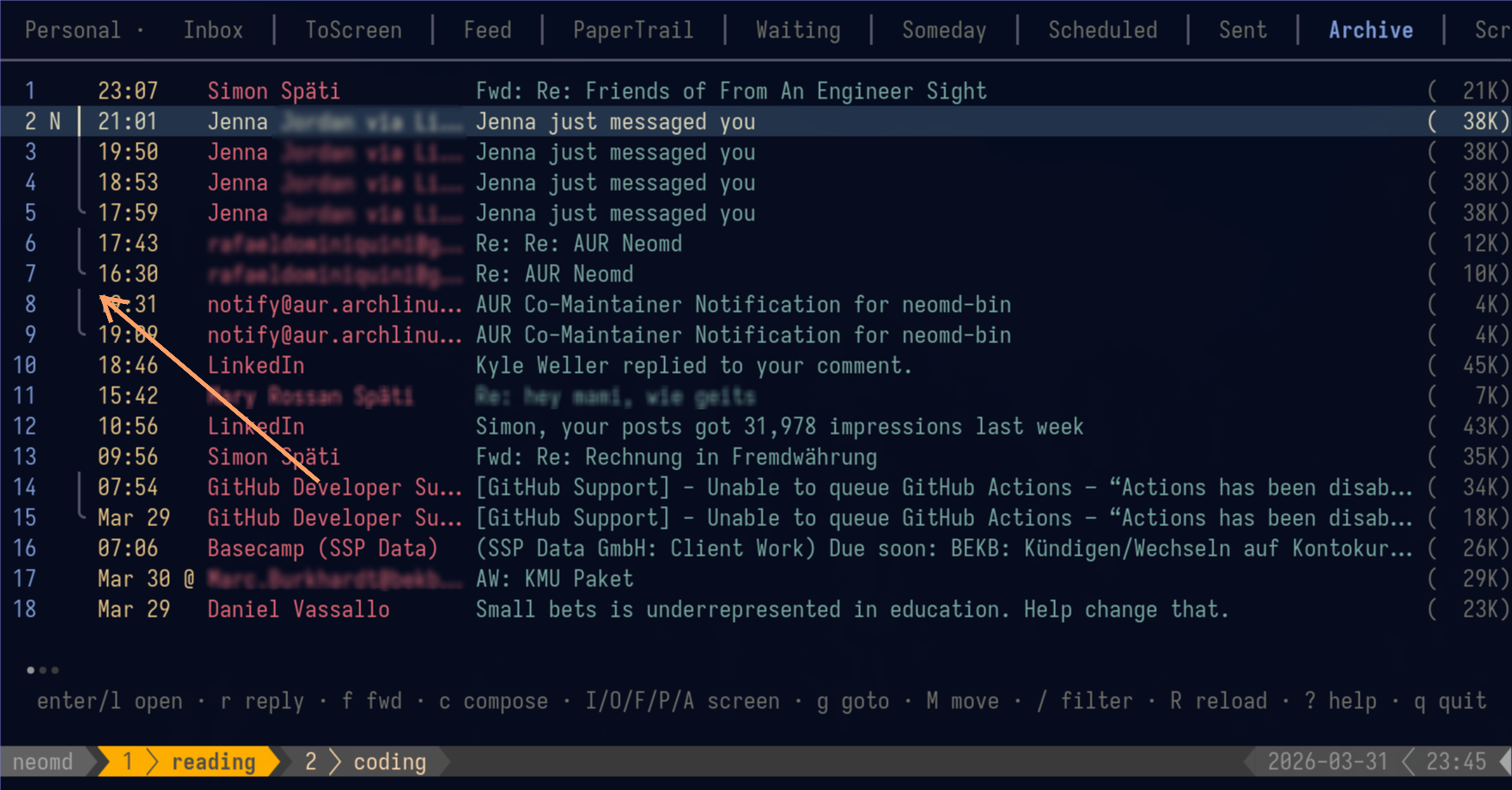
Threads display with a Twitter-style vertical connector line:
  1  ·17:43  │ rafaelxxxxxxxxxxx@g…  Re: Re: AUR Neomd              (12K)
  2  ·16:30 ·╰  rafaelxxxxxxxxxxx@g…  Re: AUR Neomd                  (10K)
  3 N 19:50  │ Bla blabla   via Li…  Jenna just messaged you        (38K)
  4 N 18:53  │ Bla blabla   via Li…  Jenna just messaged you        (38K)
  5 N 17:59  ╰ Bla blabla   via Li…  Jenna just messaged you        (38K)
  6   18:46    LinkedIn              tom Weller replied to ...      (45K)
7 ·14:22 · Simon Späti Data pipeline question (5K)·reply indicator — you’ve replied to this email (IMAP\Answeredflag, works across clients)·╰reply indicator within a thread│connects thread members (newest on top)╰marks the root/oldest email at the bottom of each thread°spy pixel indicator — tracking pixels were detected and blocked (shown after first read)- Non-threaded emails show no connector (clean, no visual noise)
- Threads are sorted by their most recent email, so active conversations float to the top
Or as image:
Sender View
Press V on any email in the inbox list to see every email from that sender, across every folder — not just the current one. neomd extracts the sender’s address and runs an IMAP from: search across Inbox, Sent, Archive, ToScreen, Feed, PaperTrail, ScreenedOut, Waiting, Scheduled, Someday, Spam, Drafts, Trash, and Work (if configured).
Results display in a temporary “Sender” tab, same as Search/Everything/Thread:
- Each email shows a
[Folder]prefix so you can see where it lives - Press Enter to read any email,
escto return to the previous view
This is handy for pulling up a person’s full history at a glance — e.g. checking every email a recruiter or client has ever sent you, regardless of which folder each one ended up in.
Replying, Forwarding, and Drafts
| Key | Action |
|---|---|
r | reply to sender |
ctrl+r | reply-all (sender + all CC recipients) |
f | forward email |
T | show full conversation thread across folders |
V | show all emails from this sender, across all folders |
E | continue draft (only in Drafts folder) — re-opens as editable compose |
Conversation View
Press T from the inbox list or while reading an email to see the full conversation across folders. neomd searches Inbox, Sent, Archive, Waiting, and other configured folders for related emails — matching by normalized subject and participant overlap.
Results display in a temporary “Thread” tab:
- Each email shows
[Folder]prefix (e.g.[Sent],[Inbox],[Archive]) - Threading connectors (
│/╰) show the conversation structure - Press Enter to read any email, Esc to return to previous view
Also available as :thread (alias :t) from the command line.
Mark as Read Behavior
Neomd marks emails as read after you’ve spent time viewing them, not immediately when opened. This prevents accidental marking when quickly peeking at emails.
How it works:
- When you open an email (press
enterorl), neomd fetches the full body from IMAP - Once the body loads, a timer starts (default: 7 seconds)
- If you stay in the reader for the full duration, the email is marked as
\Seenon the server - If you exit early (press
h,q,esc, orT), the email stays unread
Configuration:
[ui]
mark_as_read_after_secs = 7   # wait 7 seconds (default)
# mark_as_read_after_secs = 0   # immediate marking (no timer)
# mark_as_read_after_secs = 10  # 10 seconds
Set to 0 for immediate marking (as soon as the body finishes loading). Set to any value in seconds to customize the delay.
UI behavior:
- The local inbox list updates immediately when an email is marked as read — no need to manually refresh
- The unread indicator (
N) disappears as soon as marking completes - Manual toggle with
nstill works to mark/unmark emails at any time
Reply Indicator
Emails you’ve replied to show a · dot in the inbox list. This uses the standard IMAP \Answered flag, so it works across clients — if you reply from webmail, neomd shows it too.