Configurations
On first run, neomd creates ~/.config/neomd/config.toml with placeholders.
Full example
[[accounts]]
name     = "Personal"
imap     = "imap.example.com:993"   # :993 = TLS, :143 = STARTTLS
smtp     = "smtp.example.com:587"   # :587 = STARTTLS, :465 = TLS
user     = "me@example.com"
password = "app-password"
from     = "Me <me@example.com>"
starttls = false                    # optional: force STARTTLS (see TLS/STARTTLS section below)
tls_cert_file = ""                  # optional PEM cert/CA for self-signed local bridges
imap_disabled = false               # set true for send-only accounts (no IMAP connection)

# OAuth2 authenticated accounts are supported, it just need the relevant fields. Note that the password field is not required.
[[accounts]]
name     = "Personal"
imap     = "imap.example.com:993"   # :993 = TLS, :143 = STARTTLS
smtp     = "smtp.example.com:587"
user     = "me@example.com"
from     = "Me <me@example.com>"
oauth2_client_id = ""
oauth2_client_secret = ""
oauth2_issuer_url = ""
oauth2_scopes = ["", ""]

# Multiple accounts supported — add more [[accounts]] blocks
# Switch between them with `ctrl+a` in the inbox

# Root-level settings
store_sent_drafts_in_sending_account = false  # default: Sent/Drafts stay in the first IMAP account
default_from = ""  # default: "" = new composes/replies use the first [[accounts]] block.
                    # Set to an address (e.g. "simon@ssp.sh") to default the From
                    # field to a different account or [[senders]] alias without
                    # reordering accounts or changing which account's inbox loads
                    # on startup. Matched against accounts first, then senders.
                    # Falls back to the first account if the address doesn't match
                    # anything configured. Cycle with ctrl+f as usual regardless.

# Optional: SMTP-only aliases — cycle with ctrl+f in compose/pre-send
# [[senders]]
# name    = "Work alias"
# from    = "info@example.com"
# account = "Personal"   # must match the name = field of an [[accounts]] block

[screener]
# default: ~/.config/neomd/lists/ — or reuse existing neomutt lists
screened_in  = "~/.config/neomd/lists/screened_in.txt"
screened_out = "~/.config/neomd/lists/screened_out.txt"
feed         = "~/.config/neomd/lists/feed.txt"
papertrail   = "~/.config/neomd/lists/papertrail.txt"
spam         = "~/.config/neomd/lists/spam.txt"

[folders]
inbox        = "INBOX"
sent         = "Sent"
trash        = "Trash"
drafts       = "Drafts"
to_screen    = "ToScreen"
feed         = "Feed"
papertrail   = "PaperTrail"
screened_out = "ScreenedOut"
archive      = "Archive"
waiting      = "Waiting"
scheduled    = "Scheduled"
someday      = "Someday"
spam         = "spam" #check capitalization of your pre-existing Spam folder, sometimes might be `Spam` with `S`
# work = "Work"  # optional custom folder; add "work" to tab_order to show as a tab (gb to go, Mb to move -b for business as w was taken)
# tab_order controls the left-to-right tab sequence; omit to use the built-in default order. e.g.:
# tab_order = ["inbox", "to_screen", "feed", "papertrail", "waiting", "someday", "scheduled", "sent", "archive", "screened_out", "drafts", "trash"]
# Gmail uses different folder names — see docs/content/gmail.md for the correct mapping.

[ui]
theme                = "kanagawa"   # kanagawa | kanagawa-paper | kanagawa-light | rose-pine | gruvbox | osaka-jade
inbox_count          = 200      # how many newest emails neomd loads per folder/reload
auto_screen_on_load  = true     # screen inbox automatically on every load (default true)
bg_sync_interval     = 5        # background sync interval in minutes; 0 = disabled (default 5)
bulk_progress_threshold = 10    # show progress counter for batch operations larger than this (default 10)
draft_backup_count      = 20    # rolling compose backups in ~/.cache/neomd/drafts/ (default 20, -1 = disabled)
mark_as_read_after_secs = 7     # seconds in reader before marking as read; 0 = immediate (default 7)
signature   = """**Your Name**
Your Title, Your Company

Connect: [LinkedIn](https://example.com/)

*sent from [neomd](https://neomd.ssp.sh)*"""[Gmail]/Sent Mail, [Gmail]/Trash, etc.). See Gmail Configuration for the correct mapping.Use an app-specific password (Gmail, Fastmail, Hostpoint, etc.) rather than your main account password.
inbox_count is a fetch cap for normal folder loads and startup auto-screening. If you want to re-screen the entire Inbox on the IMAP server, use :screen-all from inside neomd; that scans every Inbox email, not just the loaded subset, and can take a while on large mailboxes.
Passwords: Env and Keyring
Environment Variables
The password and user fields support environment variable expansion. If the entire value is a single env var reference, neomd resolves it at startup:
password = "$IMAP_PASS"        # $VAR form
password = "${IMAP_PASS}"      # ${VAR} form
Values containing other text or multiple $ signs are left as-is, so passwords that happen to contain $ are never mangled.
Credentials are stored only in ~/.config/neomd/config.toml (mode 0600) and never written elsewhere; all IMAP connections use TLS (port 993) or STARTTLS (port 143).
Storing passwords in the OS keyring (Linux)
Set password = "keyring" to fetch the password from your OS keyring (macOS Keychain, GNOME Keyring / KDE Wallet via Secret Service on Linux, Windows Credential Manager) at startup. The lookup uses the [[accounts]].name as the account identifier under service neomd.
[[accounts]]
name     = "Personal"
password = "keyring"           # resolved at startup; see below for setup
# ...rest of the account
Setup before first launch (Linux, using secret-tool from libsecret):
zalando/go-keyring writes Secret Service entries with two attributes — service (always neomd) and username (account/<name>/password, where <name> is the [[accounts]].name from your config). The --label is display-only; entries are identified by their attributes.
# Add the entry (you'll be prompted for the password on stdin):
secret-tool store --label "neomd Personal" service neomd username account/Personal/password

# Verify it was stored (read-only):
secret-tool lookup service neomd username account/Personal/password

# Audit every neomd entry currently in your keyring:
secret-tool search --all service neomd

# Remove a specific entry if you want to start over:
secret-tool clear service neomd username account/Personal/password
Important
Multiple accounts → multiple distinct username values. Same service+username overwrites, regardless of label. For three accounts named Personal, Work, WorkInfo in your config, run three commands with three different username=account/<name>/password values — labels are not enough.
secret-tool store --label "neomd Personal"  service neomd username account/Personal/password
secret-tool store --label "neomd Work"      service neomd username account/Work/password
secret-tool store --label "neomd WorkInfo"  service neomd username account/WorkInfo/password
Recommended: avoid spaces in
name = "..."(useWorkInforather than"Work Info"). Easier to type insecret-toolcommands without quoting; the keyring username is justaccount/WorkInfo/password. If you do use a space, quote the whole username arg every time:username "account/Work Info/password".
secret-tool only touches entries that match the exact attribute set you pass. It cannot read, modify, or delete other applications’ keyring entries — your Firefox / GNOME Online Accounts / SSH Agent / browser passwords stay isolated under their own service= namespaces. Worst case if you typo: a stale entry sits unused, removable with secret-tool clear above.
If the keyring entry is missing or the keyring service is unavailable, neomd prints a warning and the literal sentinel "keyring" is used as the password — IMAP/SMTP authentication will then fail with a clear error. [[senders]] aliases that reference an account inherit the resolved keyring password automatically.
OAuth2 tokens are also stored in the keyring under username = account/<name>/oauth2 with the same service = neomd, falling back to ~/.config/neomd/tokens/<account>.json (mode 0600) when no keyring is available (headless / SSH systems).
TLS and STARTTLS Configuration
Neomd automatically determines the correct encryption method based on the port and the optional starttls config field:
IMAP ports:
993→ Implicit TLS (standard IMAPS)143→ STARTTLS upgrade (standard IMAP)- Non-standard ports (e.g.,
1143for Proton Mail Bridge) → TLS by default - Set
starttls = trueto force STARTTLS on any port
SMTP ports:
465→ Implicit TLS (SMTPS)587→ STARTTLS upgrade (modern submission standard)- Non-standard ports (e.g.,
1025for Proton Mail Bridge) → TLS by default - Set
starttls = trueto force STARTTLS on any port
Examples:
Standard provider (Gmail, Hostpoint, etc.):
[[accounts]]
imap = "imap.gmail.com:993"
smtp = "smtp.gmail.com:587"
starttls = false  # optional, default behavior works
tls_cert_file = ""
Proton Mail Bridge (local bridge on non-standard ports):
[[accounts]]
imap = "127.0.0.1:1143"  # Uses TLS automatically
smtp = "127.0.0.1:1025"  # Uses TLS; set starttls=true if bridge uses STARTTLS
starttls = false
tls_cert_file = "~/ProtonBridge/cert.pem"  # optional: exported Bridge cert
Custom server with STARTTLS on non-standard port:
[[accounts]]
imap = "mail.custom.com:2143"
smtp = "mail.custom.com:2587"
starttls = true  # Forces STARTTLS instead of TLS
See Proton Bridge Setup for complete Proton Mail Bridge setup instructions.
For localhost/self-signed bridges such as Proton Mail Bridge, neomd first tries
normal certificate verification. If that fails with an unknown-authority error
on a loopback host (127.0.0.1, ::1, localhost), neomd retries once with a
localhost-only fallback so existing Bridge setups keep working. If you want
strict verification, export the Bridge certificate and set tls_cert_file.
Sent and Drafts Storage
When multiple accounts or [[senders]] aliases are configured, SMTP delivery
always uses the selected sending identity’s account.
By default, IMAP storage for Sent and Drafts uses the first configured account, so one primary mailbox owns your sent/draft archive:
store_sent_drafts_in_sending_account = falseIf you want Sent and Drafts to follow the selected sending account instead, set:
store_sent_drafts_in_sending_account = trueSend-Only Accounts (imap_disabled)
Set imap_disabled = true on an account to use it only for sending. Neomd will skip IMAP connection, folder fetching, and screening for that account. The account remains available as a From address via ctrl+f in compose/pre-send.
[[accounts]]
name          = "Gmail"
imap          = "imap.gmail.com:993"
smtp          = "smtp.gmail.com:587"
user          = "me@gmail.com"
password      = "$GMAIL_APP_PASSWORD"
from          = "Me <me@gmail.com>"
imap_disabled = true
ctrl+a account cycling skips IMAP-disabled accounts. Useful for adding a provider purely for sending without fetching its emails.
Sending and Discarding
To abort a compose without sending, close neovim with ZQ or :q! (discard). To send, save normally with ZZ or :wq.
Contacts
neomd keeps a small address book (address → display name) at ~/.cache/neomd/contacts, harvested automatically from the headers of every email it loads. It powers name search (finding “louise” even when a message only stores lnachname@domain.io) and decorates outgoing To:/Cc: headers with real names — see Sending → Recipient Names.
You can merge your own contacts on top:
[contacts]
file = "~/.config/neomd/contacts.csv"
Two formats are auto-detected:
Simple lines — one contact per line, # comments allowed:
# addr,name  or  addr<TAB>name  or  Name <addr>
lnachname@domain.io,Louise Nachname
Bob Builder <bob@x.io>
Google Contacts export — point file directly at an unmodified export from contacts.google.com → Export → Google CSV. First/Middle/Last names, every E-mail N column, :::-separated multi-address cells, multi-line Notes fields, and the UTF-8 BOM are all handled. Re-export whenever your contacts change; the file is re-read on every start.
Contacts from other sources (e.g. Obsidian frontmatter) can be converted to the simple addr,name format with a small script — neomd deliberately reads one flat file instead of integrating per-source APIs.
Your file is read-only — how the two files relate
- Your
[contacts]file: read once at every startup and merged into the in-memory address book. neomd never modifies, appends to, or reformats it — you (or your export/conversion script) are the only writer. Treat it as your curated source of truth. ~/.cache/neomd/contacts(harvested cache): the file neomd does write. Names harvested from email headers land there automatically (background save, atomic write). Entries merged from your file also end up persisted there as a side effect — your file stays untouched.
Precedence: at startup your file is merged on top of the cache, but if neomd later sees a real Name <addr> header for the same address, that harvested name overwrites the entry in the cache only. Since your file is re-applied on every launch, the freshest of “your file” vs. “last harvested header name” wins per session. Delete the cache file anytime — it is simply rebuilt from harvesting plus your file.
Backing up / syncing the cache
The harvested cache is per-machine and lives outside your config, so it is easy to forget in backups. Names re-harvest automatically from loaded mail, so losing it is never fatal — but names you only ever typed (recipients who never emailed you back) exist solely in this file. If you already sync your screener lists across devices with Syncthing (see Headless → Multi-Device Setup), adding ~/.cache/neomd/contacts to a synced folder gives every device the same address book. One caveat: both machines write this file, so concurrent writes resolve last-writer-wins (Syncthing may leave a .sync-conflict copy) — a name lost that way simply re-harvests the next time that person’s mail is loaded, so in practice this is harmless. Alternatively just include the file in your regular backup.
Contacts picker (space c)
Press space c in the inbox to browse the merged address book:
| Key | Action |
|---|---|
/ | filter by name or address (type to narrow, enter to confirm, esc to clear) |
j / k | move selection |
y | copy the selected address to the clipboard (wl-copy/xclip/xsel/pbcopy) |
Y | copy Name <addr> |
enter | start a compose with the contact as To: |
esc / q | close |
Signature
The signature field in [ui] is appended automatically when opening a new compose buffer (c). It is not added for replies. The separator -- is inserted for you — just write the signature body in Markdown.
Use TOML triple-quoted strings (""") to preserve line breaks. The signature appears at the end of the buffer — you can edit or delete it before saving.
HTML Signatures
For professional HTML signatures (with logos, tables, styled text), use the [ui.signature_block] config with separate text and html fields:
[ui.signature_block]
  text = """[html-signature]"""

  html = """<table cellpadding="0" cellspacing="0" border="0" style="font-family: -apple-system, BlinkMacSystemFont, 'Segoe UI', Roboto, sans-serif; font-size: 14px; line-height: 1.6; color: #333; margin-top: 20px;">
  <tr>
    <td style="padding-right: 20px; vertical-align: top;">
      <img src="https://example.com/logo.png" alt="Company Name" width="80" style="display: block; border: 0;">
    </td>
    <td style="border-left: 2px solid #e0e0e0; padding-left: 20px;">
      <div style="margin-bottom: 8px;">
        <strong style="font-size: 16px; color: #1a1a1a;">Your Name</strong><br>
        <span style="color: #666; font-size: 13px;">Your Title, Company Name</span>
      </div>
      <div style="margin-bottom: 6px; font-size: 13px; color: #888;">
        <span>Connect:</span>
        <a href="https://linkedin.com/in/..." style="text-decoration: none; margin: 0 4px;">LinkedIn</a>
      </div>
      <div style="font-size: 11px; color: #999; font-style: italic;">
        sent from <a href="https://neomd.ssp.sh" style="text-decoration: none;">neomd</a>
      </div>
    </td>
  </tr>
</table>"""
How it works:
- Text signature — appears in the editor buffer and in the
text/plainMIME part - HTML signature — appends to the
text/htmlMIME part only (recipients using HTML email clients see this) [html-signature]placeholder — include this in your text signature to enable HTML signature for a specific email; visible in the editor and pre-send preview, but stripped before sending- Per-email control — delete the
[html-signature]line in the editor to send without the HTML signature for that email
This is how it looks
The sent e-mail with above HTML signature looks like this:
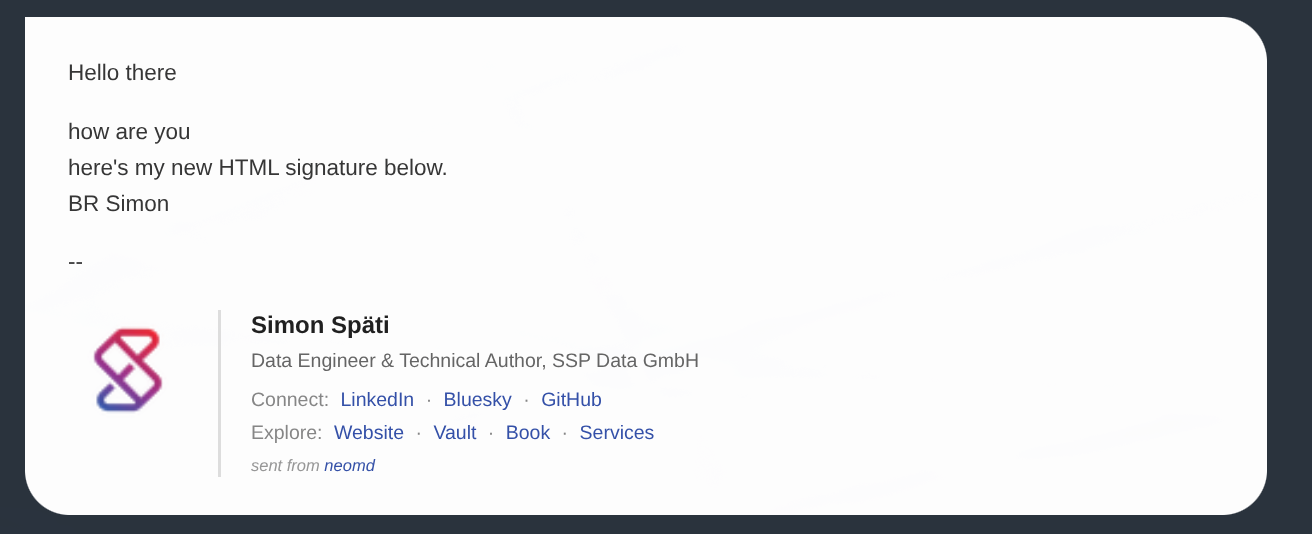
In the email as text:
Hello there

how are you
here's my new HTML signature below.
BR Simon

--
[html-signature]
Notes:
- Use inline styles only (no
<style>blocks or external CSS) for maximum email client compatibility - The
textfield is backward compatible: if empty, neomd falls back to the legacysignaturefield - The
--separator is added automatically before the text signature
Automatic logo embedding (CID)
Any <img src="https://..."> in an HTML signature is automatically fetched at send time and embedded directly in the email as a Content-ID (cid:) inline part inside a multipart/related wrapper. This means:
- Logo always shows in Gmail — no “display images” prompt needed
- No extra attachment —
Content-Disposition: inlineinsidemultipart/relatedis invisible to clients’ attachment lists - Works offline for recipients — the image travels with the email; no external request is made when the recipient opens it
If the fetch fails (network error, HTTP error), neomd silently leaves the original src URL in place and the email sends normally. Each embedded image adds roughly its file size (~50 KB for a typical logo) to the email.
You do not need to do anything special — just put a normal https:// URL in your src attribute and neomd handles the rest.
Per-Account Signatures
Each account can override the global signature via an [accounts.signature_block] table nested inside its [[accounts]] entry. Accounts without a block fall back to the global [ui.signature_block] (or, if that is also unset, the legacy [ui].signature).
Pick whichever shape fits the account.
Text-only — simple Markdown signature
For a casual account where a plain Markdown signature is enough. Goldmark renders the same Markdown into HTML for the text/html part, so links, bold, and headings still work in HTML clients.
[[accounts]]
  name = "Personal"
  # ...
  [accounts.signature_block]
  text = """**Simon**
some [markdown](https://ssp.sh) text here"""
The text is appended to the editor buffer when you press c — what you see is what recipients get.
Text + HTML — separate styled HTML signature
For a business account where you want a logo, table layout, and CSS that goldmark won’t produce from Markdown. The text field carries the [html-signature] placeholder marker; at send time neomd strips it from the text/plain part and injects the html field into the text/html part instead. See HTML Signatures above for the full mechanism.
[[accounts]]
  name = "Business"
  # ...
  [accounts.signature_block]
  text = """[html-signature]"""
  html = """<table cellpadding="0" cellspacing="0" border="0" style="font-family: -apple-system, BlinkMacSystemFont, sans-serif; font-size: 14px;">
    <tr>
      <td><img src="https://example.com/logo.png" width="70" alt="Company"></td>
      <td>
        <strong>Your Name</strong><br>
        <span>Your Title, Company Name</span>
      </td>
    </tr>
  </table>"""
Note
The per-account block does not merge field-by-field with the global [ui.signature_block]. Whatever you set in [accounts.signature_block] is the signature for that account; the other field stays unset for that account. So only set html when you have an HTML signature to inject — otherwise text alone (Markdown) is enough.
Theming
Pick from six built-in palettes via [ui].theme:
| Name | Mode | Source |
|---|---|---|
kanagawa (default) | dark | https://github.com/rebelot/kanagawa.nvim |
kanagawa-paper | dark | https://github.com/thesimonho/kanagawa-paper.nvim |
kanagawa-light | light | Lotus palette from kanagawa.nvim, paperwhite (#F2EFE9) background |
rose-pine | dark | https://github.com/rose-pine/rose-pine-theme |
gruvbox | dark | https://github.com/morhetz/gruvbox |
osaka-jade | dark | https://github.com/Justikun/omarchy-osaka-jade-theme |
How it looks (Kanagawa Paper does not yet work, also light needs some work):
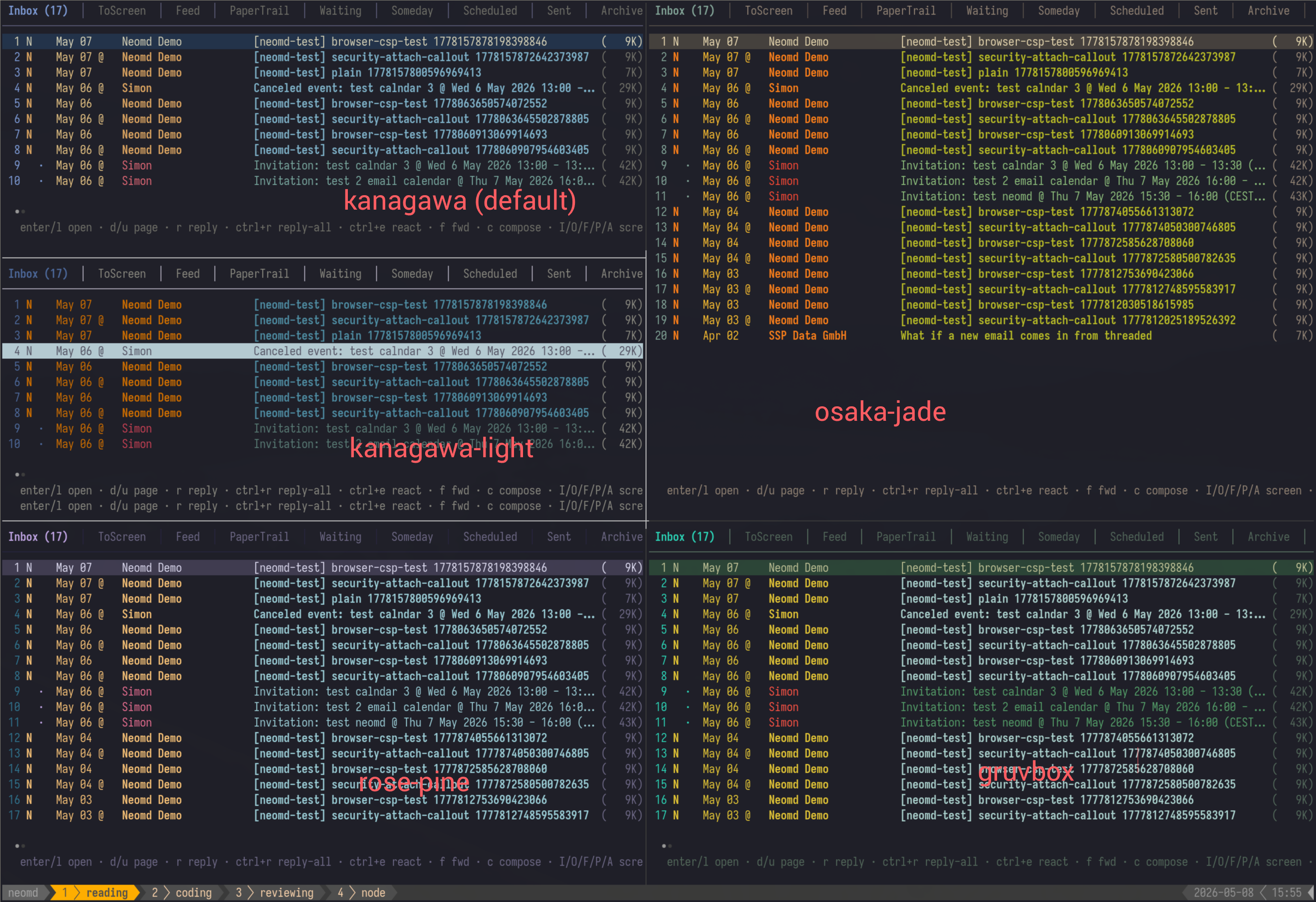 notice, that background color depends on terminal color/theme, so that you’d need to fit your color theme (I didn’t do in these printscreen)
Override individual colour slots (any subset) via the optional [theme] block:
[ui]
theme = "rose-pine"

[theme]
# All slots are hex strings ("#rrggbb"). Empty / missing slots fall back
# to the named built-in.
primary       = "#ff79c6"   # accent (active tab, header, autocomplete)
unread        = "#bd93f9"   # unread email emphasis
error         = "#ff5555"
# bg, border, subtle, selected, text, muted, number, date,
# author_read, subject_read, size_col, author_unread, subject_unread, success
Calendar invites
[calendar]
open_command = "xdg-open"   # what `<space> v o` runs to import .ics into your local calendar app
                            # Linux: defaults to xdg-mime registration; set to "morgen", "khal",
                            # "/usr/bin/gnome-calendar", etc. to force a specific app
Workflow + caveats (sending an iMIP REPLY ≠ importing into your calendar) are documented in Reading → Calendar Invites.
AI handoff (pre-send i key)
The [ai] block configures the external CLI that pre-send i hands the draft off to. The full workflow (prompt modes, return path, the claude -p warning) lives in Sending → AI Handoff — this section just covers the config surface.
[ai]
command = "claude"                      # default: Claude Code CLI
args    = ["edit {file}: {prompt}"]     # default: tells claude what file + what to do
# command = "codex"
# command = "aichat"
Placeholders substituted at spawn time:
{prompt}— what you typed at the pre-send prompt (empty string if you hit Enter without typing). If an arg consists only of{prompt}and the prompt is empty, the arg is dropped so the spawn isclauderather thanclaude "".{file}— the draft’s basename (not the full path). neomd sets the spawned process’scwdto the temp dir holding the draft, so claude’s built-in Edit tool reaches the file natively without--add-dir.
args is the complete arg list — neomd does not auto-append the file path. Reference {file} somewhere in args if your tool needs the filename (the default ["edit {file}: {prompt}"] does this inside a single instruction string for claude). Set command = "" to disable the i key entirely.
OAuth2 Authentication
Neomd supports OpenAuth2 authenticated accounts, you just need to add oauth2_client_id, oauth2_client_secret, oauth2_scopes and oauth2_issuer_url.
Note that when using oauth2 authentication, the password field is not required in the account configuration.
Issuer URL
By default, if an issuer URL is provided, i.e.: https://login.microsoftonline.com/common/v2.0 for Office265 accounts, neomd will search for the OpenID Connect discovery URL: /.well-known/openid-configuration resolving then the oauth2_token_url and oauth2_auth_url. These parameters can be provided manually as well.
Scopes
The scopes required depends on the provider and is better confirmed by your email provider. As an example, for Office365 acounts, the following scopes are required for IMAP: "https://outlook.office365.com/IMAP.AccessAsUser.All", "offline_access".
Reference documentation for GMAIL and Office365
- To enable OAuth2 authentication for Office365 accounts, follow the documentation here
- For GMAIL, follow the documentation here